
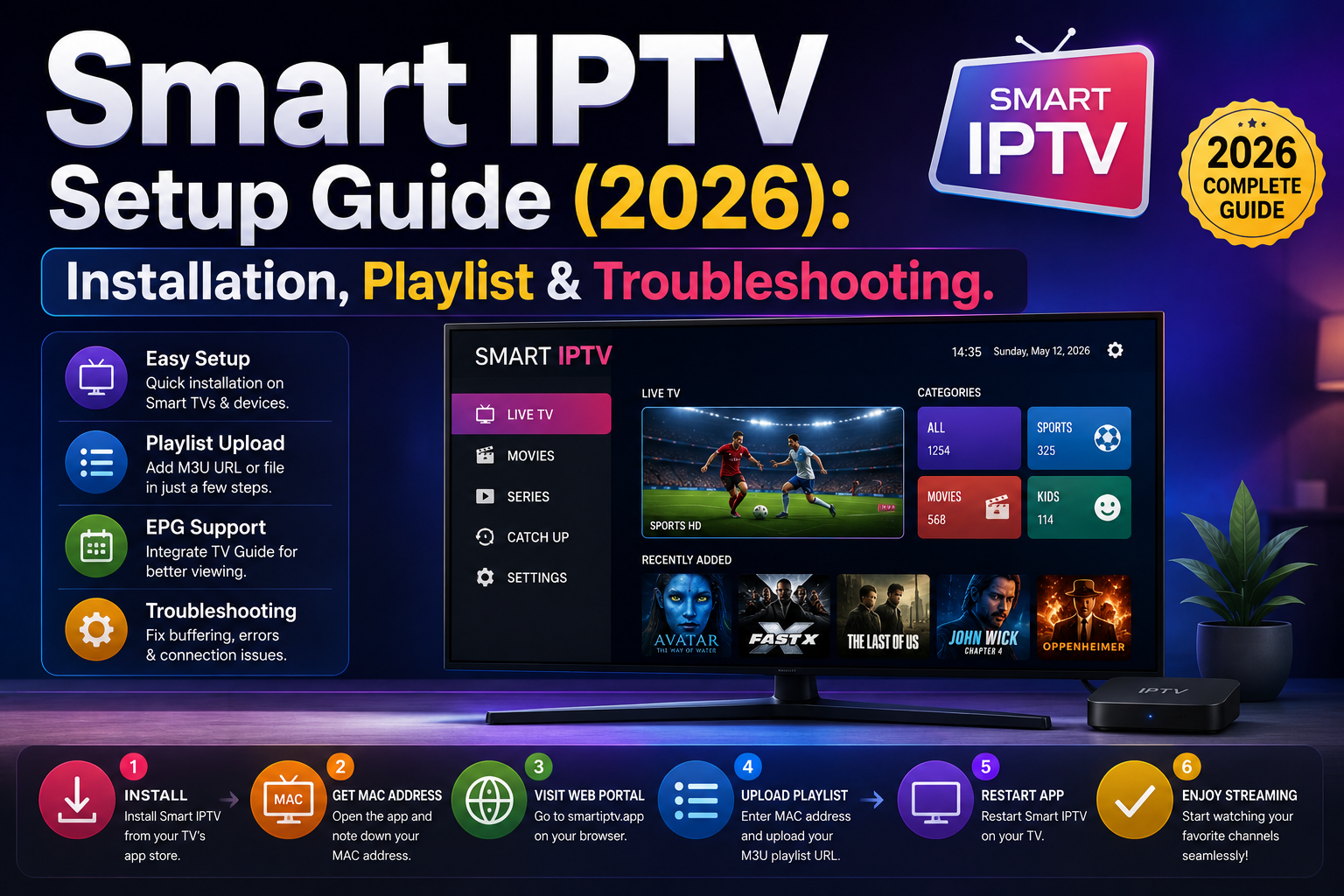
You sit down on the couch after a long workday, grab your TV remote, and turn on your Smart TV expecting to catch the game or finish that series you’ve been binge-watching. Instead of a smooth stream, you are staring at a spinning buffer wheel, a blank screen, or an cryptic “Check URL” error message. If you have spent any time trying to get live streams working on a television, you know how frustrating that moment feels.
Setting up a reliable streaming environment on a modern television often leads users straight to smart iptv—one of the earliest and most widely recognized media player applications designed for Smart TVs. However, if you are new to the platform, the line between the application itself and the content feeds you load into it can get blurry very fast.
+-----------------------------------------------------------------------+
|                           SMART TV / DEVICE                           |
|                                                                       |
|   +---------------------------------------------------------------+   |
|   |                   SMART IPTV APPLICATION                      |   |
|   |                   (Media Player Engine)                       |   |
|   +-------------------------------+-------------------------------+   |
|                                   |                                   |
+-----------------------------------|-----------------------------------+
                                    |
                                    v (Loads via MAC Address)
+-----------------------------------------------------------------------+
|                    YOUR M3U PLAYLIST / SERVER URL                     |
|                   (Live TV Streams, VOD, EPG Data)                    |
+-----------------------------------------------------------------------+
Over the past few years, I have configured this app across almost every major TV brand—from older Samsung Tizen displays and LG WebOS models to Android TV boxes and Amazon Firesticks. Along the way, I have bumped into every error code, broken playlist format, and network roadblock imaginable.
In this comprehensive guide, we will break down everything you need to know about smart iptv. You will learn how the application works, how to set it up correctly from scratch, how to upload and manage your playlists, how to resolve annoying buffering issues, and how it stacks up against newer alternatives available today.
What Is Smart IPTV and How Does It Actually Work?
Before touching your remote or opening a web browser, it is crucial to understand what the app actually does. A frequent misconception among beginners is assuming that downloading the app gives you instant access to thousands of live channels, movie libraries, or sports packages right out of the box.
It does not. Smart iptv (frequently referred to as SIPTV) is strictly a client-side media player. It acts as an empty container or a digital vessel.
Think of the app like a specialized DVD player or a web browser. The application provides the user interface, video playback controls, channel organization system, and Electronic Program Guide (EPG) framework. However, without a disc or a web address, the browser displays nothing. You must supply your own legitimate stream sources in the form of an M3U URL or a local playlist file.
+-----------------------------------------------------------------------+
|                        M3U PLAYLIST STRUCTURE                         |
+-----------------------------------------------------------------------+
| #EXTM3U                                                               |
| #EXTINF:-1 tvg-id="CNN.us" tvg-logo="cnn.png" group-title="US",CNN HD |
| http://example.com:8080/live/user/pass/1234.m3u8                      |
+-----------------------------------------------------------------------+
The Role of the MAC Address
The key feature of this application is its activation and configuration mechanism. Unlike many modern streaming apps that require you to log in with an email address and password on the TV interface, this player identifies your hardware using your television or streaming device’s physical MAC (Media Access Control) address.
When you launch the app for the first time, it displays a unique MAC address on your screen (formatted like 00:1A:79:XX:XX:XX).
You then visit the app’s official web portal on a computer or smartphone, type in that MAC address, and paste your M3U playlist link. The server pairs your playlist directly with your device’s unique identifier. The next time you open the app on your TV, it fetches the stored playlist configuration automatically.
Free Trial vs. Activation Model
The app is not completely free, though it offers an initial test period. When you first install the app on a supported platform, you receive a 7-day free trial. This trial is tied directly to your device’s MAC address the moment the app opens for the first time.
Once the 7-day trial expires, the app requires a one-time activation fee (roughly €5.25 or equivalent in local currency per device). This is a lifetime license for that specific hardware MAC address. It is important to note that paying this fee only activates the player software—it does not purchase channels, streams, or subscription content of any kind.
Supported Platforms and Device Compatibility
Over the years, availability has shifted depending on platform policies and app store guidelines. Understanding where and how you can run the app is the first step toward a smooth installation.
+------------------+-----------------------+----------------------------+
| Platform         | Installation Method   | Performance Level          |
+------------------+-----------------------+----------------------------+
| LG WebOS         | Official LG Content   | High (Native Hardware)     |
|                  | Store                 |                            |
+------------------+-----------------------+----------------------------+
| Samsung Tizen    | Official Store / USB  | Moderate to High           |
|                  | Sideload              |                            |
+------------------+-----------------------+----------------------------+
| Android TV /     | APK Sideload          | High (Depends on box spec) |
| Google TV        |                       |                            |
+------------------+-----------------------+----------------------------+
| Amazon Fire TV   | Downloader App        | High (Firestick 4K/Cube)   |
|                  | Sideload              |                            |
+------------------+-----------------------+----------------------------+
LG WebOS TVs
LG Smart TVs running WebOS have historically offered one of the most stable environments for the application. You can generally find the app directly inside the official LG Content Store by searching for “Smart IPTV.” Because LG smart televisions feature robust hardware decoders for common broadcast video codecs, stream rendering on WebOS is typically smooth and responsive.
Samsung Tizen OS
Samsung smart TVs running Tizen OS previously hosted the app directly in the Samsung Smart Hub. However, depending on your region and the specific TV manufacturing year, the app may occasionally disappear from the official store due to regional licensing policy shifts. On older Samsung models (E, ES, F, H, J series) or when the app is absent from the store, users often resort to sideloading the application files using a USB flash drive formatted to FAT32.
Android TV and Google TV
Nvidia Shield, Sony Bravia TVs, Chromecast with Google TV, and various Android boxes handle media playback exceptionally well. While the app has faced intermittent availability on the Google Play Store over time, Android’s open architecture allows you to easily download the official APK directly from the developer’s website and install it within minutes.
Amazon Fire TV Devices
Amazon’s Firestick and Fire TV Cube run on Fire OS (an Android fork). While the app is not natively hosted on the Amazon Appstore, the device’s ability to sideload third-party apps makes installation straightforward using utility apps like Downloader.
Step-by-Step Guide to Installing Smart IPTV
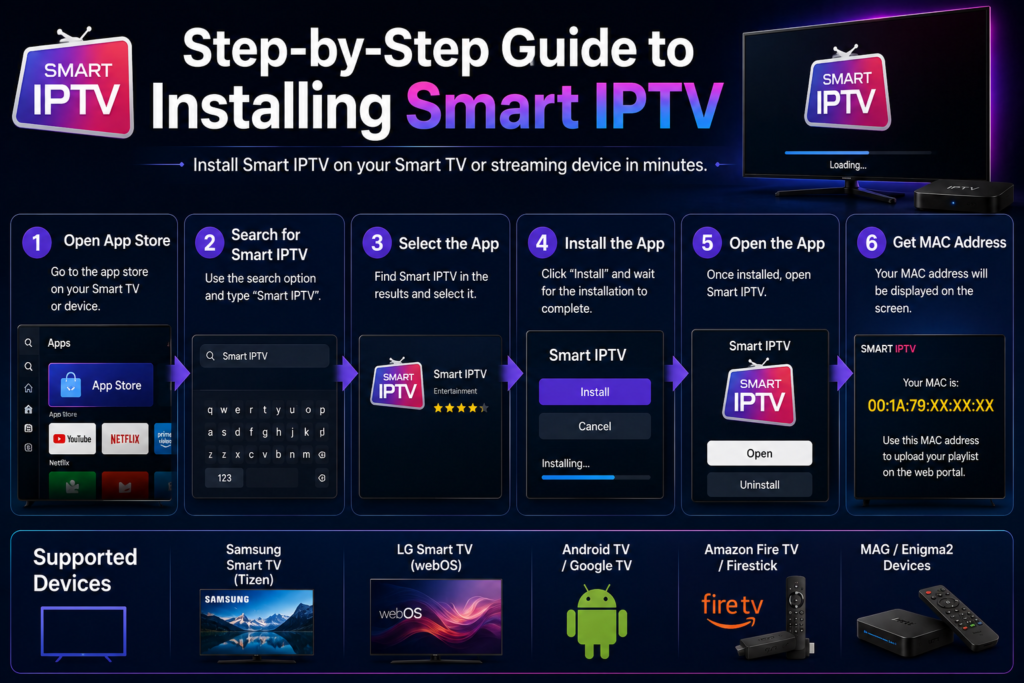
Let’s walk through the actual setup process across different TV operating systems so you can get up and running without technical headaches.
Installing on LG Smart TVs (WebOS)
- Turn on your LG Smart TV and press the Home button on your Magic Remote.
- Navigate to and open the LG Content Store.
- Select the Search icon at the top of the screen and type smart iptv.
- Select the app from the search results and click Install.
- Once installed, launch the application.
- Note down the TV MAC Address displayed prominently on the right side of the main screen.
Installing on Android TV and Amazon Firestick
Because the app is often sideloaded on Android-based operating systems, follow these precise steps:
- Enable Unknown Sources:
- On Firestick: Go to Settings > My Fire TV > Developer Options. Turn ON Apps from Unknown Sources. (If Developer Options is hidden, go to Settings > My Fire TV > About and click the main device name 7 times rapidly).
- On Android TV: Go to Settings > Device Preferences > Security & Restrictions and allow installation from unknown sources for your file browser or Downloader app.
- Download the Application:
- Open the Downloader app on your device (available in the Amazon Appstore or Google Play Store).
- In the URL input field, enter the direct download link for the official APK (obtainable from
apk.siptv.app).
- Install and Launch:
- Click Install when prompted by the system.
- Open the app after installation finishes and record your MAC Address shown on screen.
+-----------------------------------------------------------------------+
|                    STEP-BY-STEP INSTALLATION FLOW                     |
+-----------------------------------------------------------------------+
| 1. Install App on TV/Device (App Store or Downloader APK)             |
|                                                                       |
| 2. Launch App -> Write down MAC Address (e.g., 00:1A:79:XX:XX:XX)     |
|                                                                       |
| 3. Open Computer/Phone Browser -> Visit official upload portal        |
|                                                                       |
| 4. Enter MAC Address + Paste M3U Playlist Link -> Click Send          |
|                                                                       |
| 5. Restart Application on TV -> Streams Load Automatically            |
+-----------------------------------------------------------------------+
How to Upload and Manage Playlists via the Web Portal
Once you have installed the application and copied down your MAC address, the rest of the configuration takes place on a second device—such as your smartphone, tablet, or desktop computer.
Preparing Your M3U Link
Your content feed usually comes as an M3U URL. This is a web address that points directly to a text file containing stream locations, channel names, category tags, and server parameters. A typical M3U link looks something like this:
[http://example-server.com:8080/get.php?username=youruser&password=yourpass&type=m3u_plus&output=ts](http://example-server.com:8080/get.php?username=youruser&password=yourpass&type=m3u_plus&output=ts)
Pro Tip: Always request or use the
m3u_plusformat if your source offers it. The standardm3uformat only contains channel names and stream links, whereasm3u_plusincludes structured metadata for channel groups, log file locations, and electronic program guide mapping.
Adding the Playlist to Your TV
Follow this exact sequence to register your playlist with your TV:
- Open a browser on your computer or phone and navigate to the official upload site at siptv.app/mylist/.
- Locate the section labeled Upload M3U playlist to Smart IPTV.
- In the MAC field, type your TV’s exact MAC address without spaces or typos.
- In the URL field, paste your complete M3U link.
- Select your preferred country from the dropdown list (this helps match the built-in EPG database to your regional channels).
- Check the box labeled Save online if you want your playlist stored securely on the server for easier remote updates.
- Click the Send button.
+-----------------------------------------------------------------------+
|                     SIPTV WEB PORTAL CONFIGURATION                    |
+-----------------------------------------------------------------------+
|  MAC Address:  [ 00 : 1A : 79 : 12 : 34 : 56 ]                        |
|                                                                       |
|  URL / Link:   [ http://server.com/get.php?username=x&password=y... ] |
|                                                                       |
|  Options:      [X] Save Online   [X] Detect EPG   Country: [ USA  v ] |
|                                                                       |
|                                 [ SEND ]                              |
+-----------------------------------------------------------------------+
If successful, a green pop-up message will appear saying “1 URL added! Restart the application.”
Now, pick up your TV remote, exit the app completely, and reopen it. You will see a progress bar indicating that channels are downloading. Within a few seconds, your full channel lineup, complete with categories and stream names, will appear on screen.
Configuring the Electronic Program Guide (EPG)
Watching live TV without knowing what is currently playing or coming up next severely degrades the viewing experience. An Electronic Program Guide (EPG) populates your channel list with TV show titles, broadcast times, episode descriptions, and progress bars.
+-----------------------------------------------------------------------+
|                           EPG GRID DISPLAY                            |
+-----------------------------------------------------------------------+
| CH # | CHANNEL NAME   | 08:00 PM            | 08:30 PM                |
+------+----------------+---------------------+-------------------------+
| 101  | HBO HD         | Evening Movie Pt. 1 | Evening Movie Pt. 2     |
| 102  | ESPN Live      | SportsCenter Live   | Late Night Analysis     |
| 103  | Discovery      | Nature Documentary  | Ocean Exploration       |
+-----------------------------------------------------------------------+
Automatic EPG Integration
In most cases, if your M3U link uses the m3u_plus format, the app detects embedded EPG tags (tvg-id, tvg-name) and maps program guide data automatically. However, if your channel guide displays as empty or shows “No Information,” you can explicitly assign external EPG sources.
Assigning Manual EPG XML Sources
The app allows you to upload an external EPG URL directly through the web management interface:
- Go back to
siptv.app/mylist/. - Enter your device MAC Address.
- In the EPG field, paste your dedicated XMLTV URL (ending in
.xmlor.xml.gz). - Click Send and restart the app on your TV.
Adjusting EPG Time Shift
A common issue users encounter with program guides is a time discrepancy—for instance, the EPG shows a news program at 9:00 PM, but it is actually airing at 6:00 PM. This happens when the provider’s EPG server operates in a different timezone than your home setup.
You can fix this directly inside the app settings on your TV:
- Open the app on your TV and press the Settings button (usually the Red button or Menu key on your remote).
- Look for the EPG Time Shift option.
- Adjust the slider in hourly increments (+1, +2, -1, -2, etc.) until your current program schedule aligns perfectly with real-time broadcasts.
Customizing Your Viewing Experience: Groups, Favorites, and Interface Controls
Navigating through thousands of channels using a standard TV remote control can quickly turn tedious. Organizing your channels into streamlined lists makes daily use far more enjoyable.
+-----------------------------------------------------------------------+
|                      REMOTE CONTROL SHORTCUTS                         |
+-----------------------------------------------------------------------+
| RED Button    --> Open Settings / Change Stream Engine                |
| GREEN Button  --> Filter by Categories / Channel Groups               |
| YELLOW Button --> Add / Remove Channel from Favorites                 |
| BLUE Button   --> Display Channel EPG Information Grid                |
| OK / ENTER    --> Open Channel List Overlay                           |
| NUMBER KEYS   --> Direct Channel Number Selection                     |
+-----------------------------------------------------------------------+
Filtering Channel Groups
Instead of scrolling endlessly through an unsorted master list, press the Green button on your remote control while the channel list is open. This opens the Groups/Categories drawer.
Here, your provider’s playlist is sorted cleanly into categories such as US Local, Sports HD, UK Entertainment, Movies & VOD, or Documentaries. Selecting a single group isolates those channels, keeping your navigation list focused on what you actually want to watch.
Setting Up a Favorites List
For channels you watch every single day, creating a Favorites group is essential:
- Highlight the channel in your main list.
- Press the Yellow button on your remote control.
- A star icon will appear next to the channel name, indicating it has been added to your Favorites.
- To access your custom list, press the Blue button or navigate to the “Favorites” category using the Green button filter.
Video Aspect Ratio Adjustments
Broadcast sources come in various aspect ratios (16:9, 4:3, stretched ultra-wide formats). If a channel looks squished, stretched, or letterboxed with thick black bars:
- While playing the active stream, press the Up or Down arrow on your remote to display playback controls.
- Press the Aspect Ratio button (or the Blue/Red function key depending on your TV model).
- Cycle through the options: Auto, 16:9, 4:3, Zoom 1, or Zoom 2 until the image fits your display naturally.
Optimizing Performance: Network Tweaks and Buffer Settings
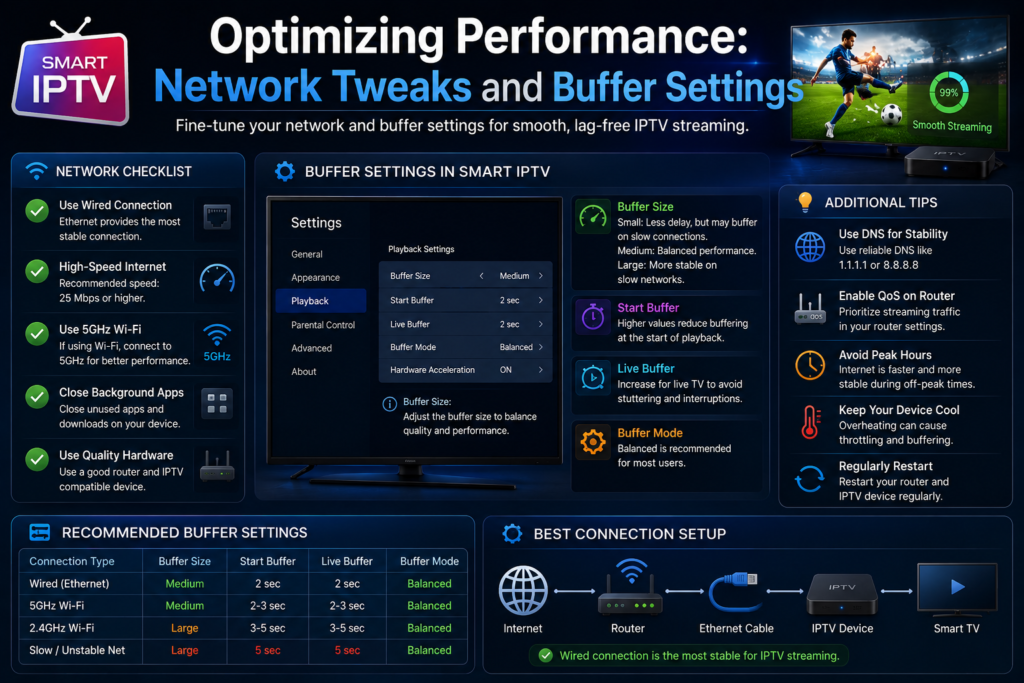
Nothing ruins live viewing faster than persistent buffering, audio delays, or video stutter. Because live streams deliver heavy data continuously over the internet, optimizing your network setup makes a massive difference.
+-----------------------------------------------------------------------+
|                     NETWORK SETUP COMPARISON                          |
+-----------------------------------------------------------------------+
|  2.4 GHz Wi-Fi  | High Latency   | Interference Prone | 10-30 Mbps    |
|  5.0 GHz Wi-Fi  | Low Latency    | Limited Range      | 100-300 Mbps  |
|  Ethernet (LAN) | Lowest Latency | Ultra-Stable       | 100-1000 Mbps |
+-----------------------------------------------------------------------+
Wi-Fi vs. Ethernet: The Gold Standard
While modern 5GHz Wi-Fi offers impressive speed, wireless signals fluctuate constantly due to physical obstacles, channel congestion from neighboring routers, and background device traffic. Live streaming demands low latency and sustained packet delivery rather than raw burst speed.
Whenever possible, connect your Smart TV or streaming box directly to your router using an Ethernet (CAT6) cable. A wired connection eliminates packet loss, slashes buffer times, and provides a stable stream even during peak evening internet usage hours.
If running a cable across your room is impractical, consider using a Powerline Ethernet Adapter, which routes network data through your home’s existing electrical wiring.
Adjusting Stream Buffer Size in Smart IPTV
The application features a built-in buffer engine designed to smooth out brief network dips. If your internet connection experiences minor instability, increasing the buffer size allows the app to store a few extra seconds of video in memory before displaying it.
- Launch smart iptv on your TV.
- Go to Settings (Red button).
- Locate the Buffer Size or Stream Delay setting.
- Experiment with setting the buffer from 0 (Disabled) up to 8 Seconds.
Note: A higher buffer setting adds a small delay when switching between channels (channel zapping will take 2–3 seconds longer), but it significantly reduces mid-program freezing on fluctuating connections.
Choosing the Right Decoder Engine
On Android devices and LG/Samsung smart TVs, the app often gives you the choice between different underlying video decoders (e.g., NCPLAYER, NCPLAYER (System), or VLC Media Engine).
If you encounter a stream that plays audio without video, or if the picture stutters while the audio runs fine, changing the internal decoder often resolves the issue instantly:
- Open Settings inside the app.
- Scroll to Decoder Engine.
- Toggle between NCPLAYER and System Decoder.
- Save and test your stream playback again.
Troubleshooting Common Smart IPTV Errors
Even with a flawless setup, you may occasionally run into errors. Here is a practical breakdown of the most common issues and how to fix them quickly.
+-----------------------------------------------------------------------+
|                    TROUBLESHOOTING DECISION TREE                      |
+-----------------------------------------------------------------------+
| Error Code / Issue    | Primary Cause        | Actionable Fix         |
+-----------------------+----------------------+------------------------+
| "Check URL"           | Typo in M3U Link /   | Re-enter M3U link on   |
|                       | Expired Playlist     | web portal carefully.  |
+-----------------------+----------------------+------------------------+
| "Connect Failed"      | Server Offline or    | Test link on PC; use   |
|                       | ISP Throttling       | custom DNS (8.8.8.8).  |
+-----------------------+----------------------+------------------------+
| "No Channels Found"   | Empty File Uploaded  | Verify M3U file size   |
|                       | or Format Error      | and structure.         |
+-----------------------+----------------------+------------------------+
| Audio/Video Desync    | Hardware Decoder     | Switch Stream Engine   |
|                       | Mismatch             | to NCPLAYER/System.    |
+-----------------------+----------------------+------------------------+
1. “Check URL” or “Check URL Error”
This is by far the most frequent error code displayed by the player. It simply means the app attempted to access the web address you uploaded, but received an invalid response or a 404/500 server error.
- Fix 1: Check for Typos. Go back to the web portal (
siptv.app/mylist/) and verify every single character of your M3U link. A missing letter, incorrect capitalization, or dropped parameter will break the connection. - Fix 2: Test the Link on a Computer. Copy your M3U link into a web browser or desktop player like VLC. If VLC fails to load the list, the issue lies with your playlist provider’s server, not your TV app.
- Fix 3: Re-upload the Playlist. Sometimes server uploads time out. Delete the old playlist on the web portal by typing your MAC address and clicking Delete, then re-paste and upload your link fresh.
2. “Connect Failed” or Continuous Loading Loop
If the application loads your channel names fine, but individual channels display “Connect Failed” or stick on a black screen when selected, your TV is failing to establish a video stream connection.
- Fix 1: Network Restart. Power cycle your network gear. Unplug your router and Smart TV from power, wait 60 seconds, plug them back in, and test again.
- Fix 2: DNS Server Configuration. Default ISP DNS servers can sometimes route video stream traffic inefficiently or block stream domains. Access your Smart TV’s network settings, change the DNS setup from Automatic to Manual, and enter Google’s public DNS servers:
- Primary DNS:
8.8.8.8 - Secondary DNS:
8.8.4.4
- Primary DNS:
- Fix 3: Check Stream Output Format. Some smart TV decoders struggle with the
.ts(Transport Stream) container format. Try modifying your M3U URL parameters fromoutput=tstooutput=m3u8oroutput=hlson the upload portal to deliver stream packets in HLS format instead.
3. Playlist Too Large / App Crashing
Older Smart TVs (especially models made prior to 2018) have very limited internal RAM and processing capabilities. If you upload a massive M3U playlist containing 50,000+ live channels and 100,000 On-Demand movies, the TV’s memory will saturate, causing smart iptv to freeze, lag, or crash during startup.
- Fix: Use your provider’s dashboard or a third-party playlist editor (like M3U4U) to prune unused categories. Removing thousands of foreign channels or heavy VOD libraries you never watch keeps your playlist under 10,000 items, restoring lightning-fast load times on older hardware.
Comparing Smart IPTV with Modern Alternatives
While smart iptv established early dominance in the Smart TV ecosystem due to its simple interface and reliable MAC-activation system, the streaming software landscape has evolved dramatically over recent years.
Depending on what device you use, modern competitors offer unique features worth considering.
+--------------------+------------------+------------------+------------------+
| Feature            | Smart IPTV       | TiviMate         | IPTV Smarters    |
+--------------------+------------------+------------------+------------------+
| Platform Support   | LG, Samsung,     | Android TV /     | Android, iOS,    |
|                    | Android, Fire TV | Fire TV Only     | Fire TV, LG, Sam |
+--------------------+------------------+------------------+------------------+
| UI Style           | Traditional TV   | Modern Cable /   | Netflix-Style    |
|                    | Guide            | Satellite EPG    | VOD Hub          |
+--------------------+------------------+------------------+------------------+
| Xtream Codes API   | Limited / Manual | Native           | Native           |
+--------------------+------------------+------------------+------------------+
| Catchup / Replay   | Basic            | Advanced         | Advanced         |
+--------------------+------------------+------------------+------------------+
| Multi-Screen Mode  | No               | Yes (Up to 9)    | Yes (Up to 4)    |
+--------------------+------------------+------------------+------------------+
| Setup Complexity   | Very Low (MAC)   | Moderate         | Easy (Login)     |
+--------------------+------------------+------------------+------------------+
Smart IPTV vs. TiviMate
If you own an Android TV device or Amazon Firestick, TiviMate is widely regarded as the gold standard player. TiviMate features a modern interface reminiscent of high-end satellite receivers, offering smooth catch-up TV support, multi-screen viewing (up to 9 streams at once), customized recording capabilities, and detailed search functionality. However, TiviMate is strictly limited to Android-based systems and cannot be installed natively on LG or Samsung operating systems. For those platforms, the classic MAC-activated player remains a top choice.
Smart IPTV vs. IPTV Smarters Pro
IPTV Smarters Pro focuses on a tile-based layout similar to mainstream streaming apps like Netflix or Prime Video, dividing content clearly into Live TV, Movies, and Series. It supports Xtream Codes API login parameters (Username, Password, Server URL) directly on the TV interface, eliminating the need to visit an external website to pair your playlist. However, some users find Smarters’ interface heavier and less responsive on older Smart TV hardware compared to the lightweight, streamlined footprint of SIPTV.
Important Security and Privacy Best Practices
When configuring media players and managing network video streams on your home network, keeping security and privacy top of mind ensures a smooth and safe viewing environment.
Maintain Router and TV Firmware Updates
Smart TVs are specialized computers connected directly to your home network. Television manufacturers release frequent firmware updates that fix security vulnerabilities, update video decoding libraries, and improve system memory management. Make it a habit to check Settings > System > Software Update on your Smart TV every few months.
Beware of Fake App Downloads and Clone Websites
Because of the application’s popularity, numerous malicious websites attempt to clone the official upload portal or distribute infected APK files designed to capture network data. Always ensure you are downloading files strictly from verified official developer sources and using the legitimate web domain (siptv.app) when uploading your playlists. Never enter sensitive passwords or payment credentials on third-party sites offering “free channel playlists.”
Frequently Asked Questions
Is Smart IPTV legal to download and use?
Yes, the application itself is 100% legal. It is simply a software media player, similar to VLC Media Player or Windows Media Player. It contains no pre-installed channels, content, or media feeds. Legality depends entirely on the legitimacy of the streams and M3U playlists you choose to load into the app.
How do I locate my TV’s MAC address inside the app?
When you open smart iptv for the first time, your TV’s MAC address is displayed directly on the right side of the main launch screen. If you have already loaded channels, you can find the MAC address by pressing the Settings button (Red key) on your remote control or by navigating to the info menu.
Why did my channels disappear suddenly?
If your channel list disappears and displays an empty screen, one of three things usually happened:
- Your 7-day free trial expired and requires lifetime activation on
siptv.app. - Your playlist provider changed their server URL or revoked your subscription link.
- The “Save online” option was disabled on the web portal and your TV cleared its temporary app cache. Re-uploading your M3U link on the portal will restore your channels immediately.
Can I transfer my Smart IPTV activation to a new TV?
Yes, but you must contact the app developers through their official support portal. Because lifetime activation licenses are permanently bound to a specific hardware MAC address, moving a license to a newly purchased Smart TV requires manually re-assigning the transaction details to your new device’s MAC address.
Can I use a single playlist on multiple Smart TVs simultaneously?
This depends entirely on your content provider’s rules, not the player application. Most M3U playlist subscriptions allow only one active stream at a time (“single connection”). If you attempt to open the same playlist on two different TVs simultaneously, you will experience severe buffering, stream freezes, or immediate account suspension from your provider.
Wrapping Up
Setting up smart iptv might seem slightly technical if you are used to plug-and-play streaming services, but once you understand the relationship between the application and your M3U playlist, the entire process becomes straightforward.
By using your TV’s unique MAC address, utilizing the web management portal, opting for direct Ethernet connections over weak Wi-Fi, and keeping your playlists trimmed down to what you actually watch, you can build a clean, reliable live television setup that runs smoothly for years.
Whether you are configuring an LG WebOS display in the living room or sideloading the application onto a Firestick in the bedroom, following the steps outlined in this guide will help you fix common buffer bottlenecks, map out your EPG correctly, and enjoy an effortless viewing experience every time you pick up the remote.


One Response
[…] I first started looking into internet-based television years ago, I fell into every trap imaginable. I paid upfront for six-month plans […]