
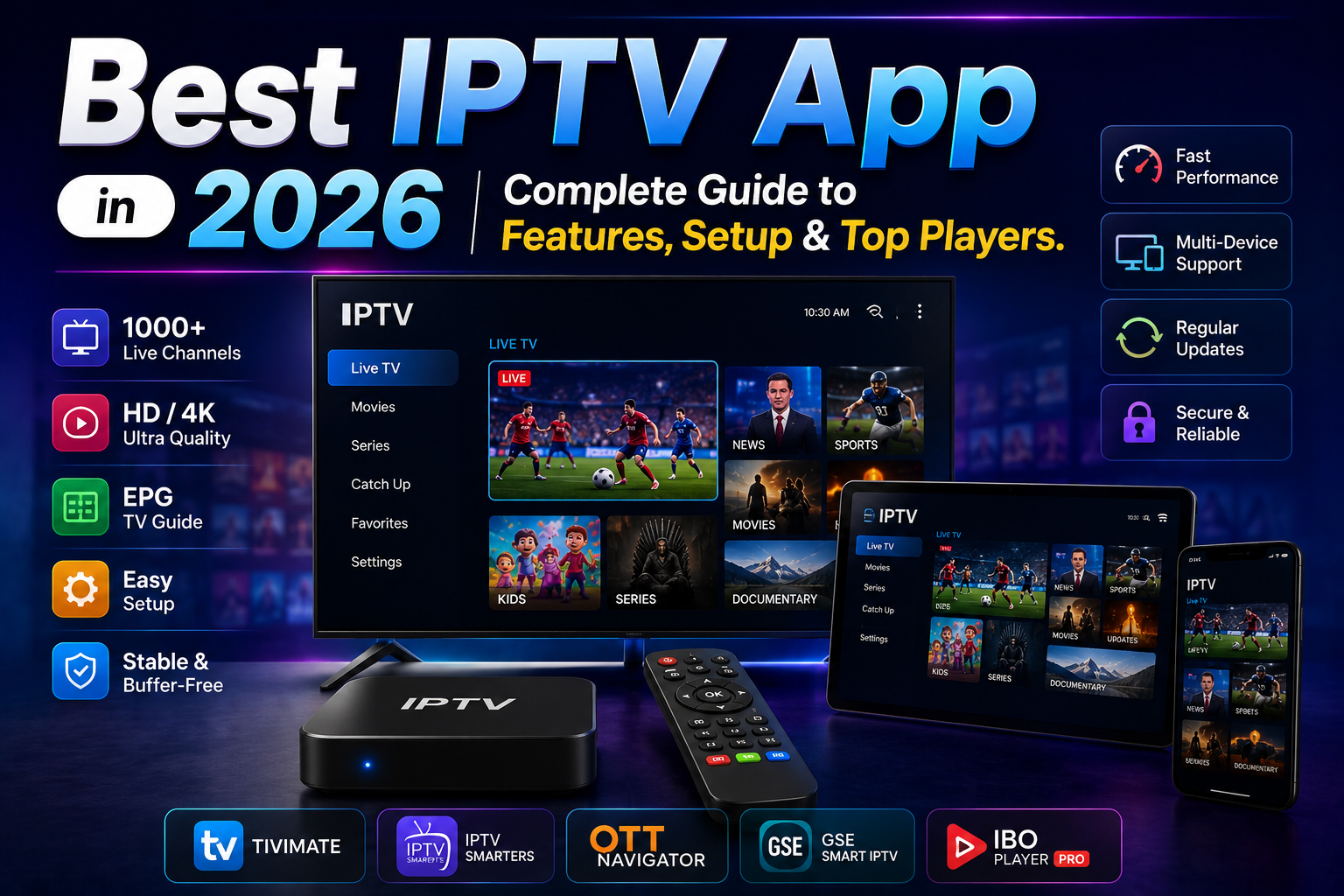
iptv app I still remember the evening I almost threw my streaming remote through the TV screen. It was minutes before a live championship match, and my screen was stuck on a spinning wheel. When the feed finally loaded, the audio was five seconds ahead of the video, and the channel guide looked like a wall of broken text.
For weeks, I assumed my internet connection was broken. In reality, the culprit wasn’t my Wi-Fi at all—it was the clunky, unoptimized iptv app I had installed on my streaming stick. Once I swapped that sluggish software for a properly configured player, the buffering stopped, channel changes became instantaneous, and the entire interface transformed.
If you have ever struggled with frozen streams, missing program guides, or confusing menu layouts, you are not alone. Finding the right iptv app and setting it up correctly is the single most important factor in getting a smooth streaming experience on your television, tablet, or phone.
Understanding What an IPTV App Actually Does (And What It Doesn’t)
Before diving into setup guides and feature menus, we need to clear up the single biggest misunderstanding in home streaming. A standalone media application does not come with live TV channels, movies, or TV shows built into it.
Think of the application as a high-tech DVD player or a digital media receiver. It is an empty software shell designed to organize, decode, and render video streams. To watch anything, you have to feed the application a playlist link or server credentials provided by a legal service or local media server.
When you install a media player on your device, it acts as a user interface that translates raw digital streams into a clean, searchable guide. Without proper software, raw stream links are just endless lists of complex web addresses that no TV remote could comfortably navigate.
+-------------------------------------------------------------------+
|                        YOUR STREAMING DEVICE                      |
|  (Amazon Firestick, Apple TV, Android Box, Smart TV, Shield)      |
|                                                                   |
|   +-----------------------------------------------------------+   |
|   |                       IPTV APP                            |   |
|   |  (TiviMate, Smarters Pro, OTT Navigator, GSE, etc.)       |   |
|   +-----------------------------------------------------------+   |
|                 ^                               ^                 |
|                 |                               |                 |
|       Decodes Video Streams                   Parses EPG Guide    |
|                 |                               |                 |
+-----------------|-------------------------------|-----------------+
                  |                               |
       +--------------------+           +--------------------+
       |  STREAMING SERVER  |           |     XMLTV DATA     |
       |  (HLS / TS / MP4)  |           | (Program Listings) |
       +--------------------+           +--------------------+
The Three Main Ways Media Players Connect to Content
When you configure your streaming software, you will generally be asked to choose between three primary connection protocols. Each protocol handles stream delivery and guide data a bit differently:
- M3U Playlists: This is a plain text file (or a web link ending in
.m3uor.m3u8) containing a list of video stream addresses along with channel logos and category tags. It is simple and universal, but large M3U files can take longer to download and parse every time you open the application. - Xtream Codes API: This method uses a server URL, a username, and a password. Instead of downloading one massive text file, the player sends structured database queries to the server. This results in much faster loading times, organized VOD categories, and automatic EPG syncing.
- Stalker Portal / MAC Authentication: This system emulates hardware set-top boxes (like MAG devices). The server grants access based directly on your device’s unique MAC address. While very secure, it offers less flexibility if you like switching between multiple streaming devices around your house.
Understanding these connections saves hours of frustration. If your player supports Xtream Codes API, always choose that option over a raw M3U link for faster menu navigation and cleaner channel categories.
Top Features to Look for in a High-Performance IPTV App
Not all streaming players are created equal. Some are lightweight and simple, while others feel like a full digital cable box with deep customization options. Through trial and error across various hardware platforms, I have found that a great iptv app must execute five core functions flawlessly.
Hardware Decoding vs. Software Decoding
Video streams come compressed in various formats like H.264, H.265 (HEVC), or AV1. How your application unpacks these files dictates whether your stream plays smoothly or stutters continuously.
Hardware decoding delegates video processing directly to your streaming device’s graphics processor. This uses minimal battery on mobile devices, keeps your streaming stick cool, and delivers crisp 60fps motion for sports.
Software decoding relies on your device’s main processor to do the heavy lifting. This is useful as a backup option if a specific stream format causes a black screen under hardware mode, but it can cause device overheating on cheaper hardware.
Electronic Program Guide (EPG) Speed and Customization
A channel list without a guide feels like driving without a map. A top-tier player automatically downloads Electronic Program Guide (EPG) data in the background using XMLTV formats.
Look for applications that allow you to adjust how often the guide updates, assign custom EPG sources to channels with missing info, and shift time zones if program listings appear an hour ahead or behind your local clock.
Multi-Screen and Catch-Up Capabilities
If you love keeping track of multiple live games or news broadcasts at once, multi-screen support is a game-changer. High-end players allow you to split your screen into two, four, or even nine individual stream grids—provided your device processor and internet bandwidth can handle it.
Catch-up support allows you to scroll backward in the program guide to watch shows that aired earlier in the day. The application fetches archived server recordings seamlessly, letting you pause, rewind, or skip forward through past broadcasts.
Buffer Size Adjustments and Adaptive Bitrate Handling
Internet connections fluctuate constantly, especially over wireless Wi-Fi networks. When network speed dips for a split second, a poor player stops cold and displays a buffering spinner.
Advanced applications allow you to set custom buffer limits—storing anywhere from 1 to 10 seconds of video in temporary memory before rendering it on screen. This tiny cushion absorbs brief network blips without interrupting your viewing experience.
Playlist Organization and Group Hiding
A typical playlist might contain thousands of channels from around the world. Navigating through endless categories you never watch is exhausting.
A great application lets you hide unwanted channel groups, create custom favorite folders, rename messy channel titles, and reorder channel numbers so your most-watched broadcasts sit right at the top.
Hands-On Review of the Best IPTV App Options Across Devices
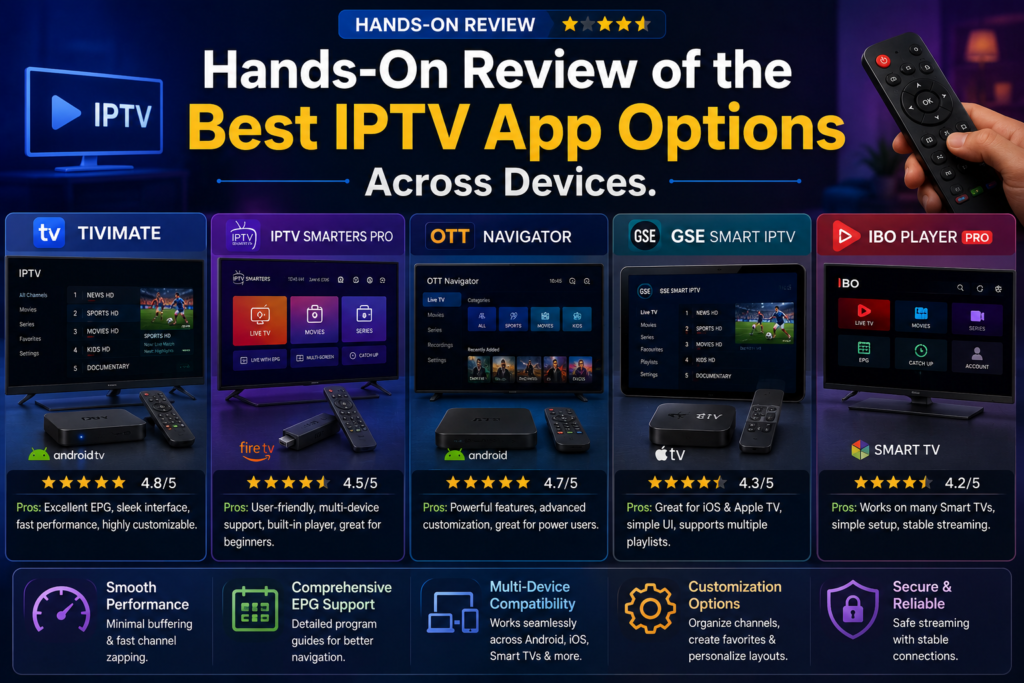
Over the past few years, I have tested dozens of media applications across Amazon Firesticks, Android TV boxes, Apple TV 4K units, Smart TVs, and mobile phones. Here is an honest, practical breakdown of how the top options perform in real-life living room conditions.
+-------------------+---------------------+-------------------------+-----------------------+
| App Name          | Best Platform       | Target User             | Key Strength          |
+-------------------+---------------------+-------------------------+-----------------------+
| TiviMate          | Android TV / Fire TV| Power Users             | Best Cable-like EPG   |
| IPTV Smarters Pro | Multi-Platform      | Beginners & Families    | Broad Compatibility   |
| OTT Navigator     | Android TV / Mobile | Customization Enthusiast| Deep Video Settings   |
| GSE Smart IPTV    | iOS / Apple TV      | iPhone / iPad Users     | Advanced M3U Parsing  |
| IBO Player Pro    | Samsung / LG TV     | Smart TV Native Users   | Lightweight & Fast    |
+-------------------+---------------------+-------------------------+-----------------------+
1. TiviMate: The Gold Standard for Android TV and Firestick
If you are using an Amazon Firestick, Chromecast with Google TV, or NVIDIA Shield, TiviMate is widely considered the undisputed king of media players. It replicates the polished experience of a traditional satellite or cable box better than any software on the market.
+---------------------------------------------------------------------------------+
| TIVIMATE INTERFACE OVERVIEW                                                     |
+---------------------------------------------------------------------------------+
| [101] Sports HD      | Live Match: Team A vs Team B (1080p 60fps)               |
|                      | [===========================>............] 65 min left  |
+----------------------+----------------------------------------------------------+
| CATEGORIES           | PROGRAM GUIDE (EPG)                                      |
| > Favorites (12)     | 8:00 PM            | 8:30 PM            | 9:00 PM        |
| > Sports UK          | Football Night Live                     | Post-Game Show |
| > Movies & Entertainment | Daily News Special | Evening Sitcom    | Drama Series   |
| > Documentary        | Planet Nature      | Deep Blue Sea      | Space Explorers|
+----------------------+----------------------------------------------------------+
The user interface is exceptionally smooth. Browsing through the channel grid while keeping the current live broadcast playing in a small preview window feels fluid. You can assign custom logos, set up automated recordings to external storage, create multi-view layouts, and back up your entire layout configuration to a file for easy deployment on other TVs around your home.
The base version offers simple single-playlist playback, while the Premium unlock ($4.99 per year or a one-time lifetime license) unlocks multi-playlist management, search filters, and guide customization. TiviMate is built specifically for TV screens and remote control navigation; it is not designed for touchscreens or mobile devices.
2. IPTV Smarters Pro: The Universal Multi-Platform Favorite
For users who want one reliable iptv app that works identically across iPhones, iPads, Android smartphones, Windows PCs, MacBooks, and Smart TVs, IPTV Smarters Pro is the go-to solution.
Its homepage layout clearly separates Live TV, Movies, Series, and Catch-Up into easy visual tiles. Setup takes less than two minutes using Xtream Codes API credentials. The built-in player handles common video codecs effortlessly, and it includes parental controls, closed-caption support, and audio track selection directly from the playback bar.
While its channel guide is not as fast or deeply customizable as TiviMate on television screens, its sheer availability across virtually every app store makes it the easiest recommendation for multi-device households.
3. OTT Navigator: Unmatched Customization for Tweakers
If you love adjusting buffer parameters, tweaking codec settings, and fine-tuning visual layouts, OTT Navigator is an outstanding option for Android-based devices.
It automatically categorizes channels by quality, language, and country, even if your provider’s original playlist is messy. It offers studio-grade media tools, including picture-in-picture mode, speed controls for catch-up content, studio audio equalizer adjustments, and automatic stream fallback options if a channel link fails to respond.
The interface carries a slight learning curve because of its massive settings menu, but once configured, it operates with rock-solid stability on both low-spec streaming sticks and high-end streaming boxes.
4. GSE Smart IPTV: The Proven Choice for Apple Ecosystems
Apple devices impose strict app store rules regarding media players, making top-tier Android options unavailable on iOS and tvOS. GSE Smart IPTV has long served as a reliable workhorse for iPhone, iPad, and Apple TV owners.
It excels at parsing complex M3U playlists with embedded HTTP headers, user-agent tokens, and redirection paths that cause simpler apps to crash. It includes an internal video player with hardware acceleration, supports external subtitle formats (.srt and .ass), and syncs your saved playlist entries across your Apple devices using iCloud.
The interface looks somewhat utility-driven compared to modern visual layouts, but its core streaming engine handles heavy playlists without freezing.
5. IBO Player Pro: Fast and Lightweight for Samsung and LG Smart TVs
Running custom media players directly on Samsung Tizen or LG webOS operating systems used to be a frustrating experience due to hardware limitations and restrictive app stores. IBO Player Pro has emerged as one of the smoothest native Smart TV solutions.
Because it offloads heavy playlist processing to lightweight background threads, it launches in seconds and scrolls through thousands of channel listings without lagging your TV’s built-in processor. It supports Xtream Codes API, external EPG links, multi-audio tracks, and dual display modes.
It offers a trial period before requiring a modest one-time activation fee tied to your TV’s device ID, making it a great option if you want to stream directly from your Smart TV without buying an external Firestick or Android TV box.
6. Sparkle TV and XCIPTV: Modern Alternatives Worth Exploring
Sparkle TV brings a polished, DVR-focused experience to Android TV platforms. It integrates live television streams natively into Android TV’s home screen channels, allowing you to record live broadcasts directly to network-attached storage (NAS) drives or internal flash drives with programmed schedules.
XCIPTV, on the other hand, features a sleek, media-center layout with built-in speed test utilities, interactive VOD trailers, and customized player controls. Many users prefer XCIPTV for its touch-friendly design on mobile tablets and simple visual design on big-screen TVs.
Step-by-Step Configuration Guide for Any IPTV App
Setting up a fresh application can feel overwhelming if you are looking at empty input screens asking for server URLs and port numbers. Below is a universal setup process that works across almost every major application platform.
+-------------------------------------------------------------------+
| STEP 1: Launch Application & Select "Add Playlist / User"         |
+-------------------------------------------------------------------+
                                  |
                                  v
+-------------------------------------------------------------------+
| STEP 2: Choose Connection Method (Xtream Codes API Recommended)   |
+-------------------------------------------------------------------+
                                  |
                                  v
+-------------------------------------------------------------------+
| STEP 3: Enter Host URL, Port, Username, and Password Credentials   |
+-------------------------------------------------------------------+
                                  |
                                  v
+-------------------------------------------------------------------+
| STEP 4: Configure EPG Time Shift & Set Buffer Size (1-3 Seconds)  |
+-------------------------------------------------------------------+
                                  |
                                  v
+-------------------------------------------------------------------+
| STEP 5: Hide Unwanted Groups & Create Custom Favorites List       |
+-------------------------------------------------------------------+
Setting Up via Xtream Codes API in Your Chosen IPTV App
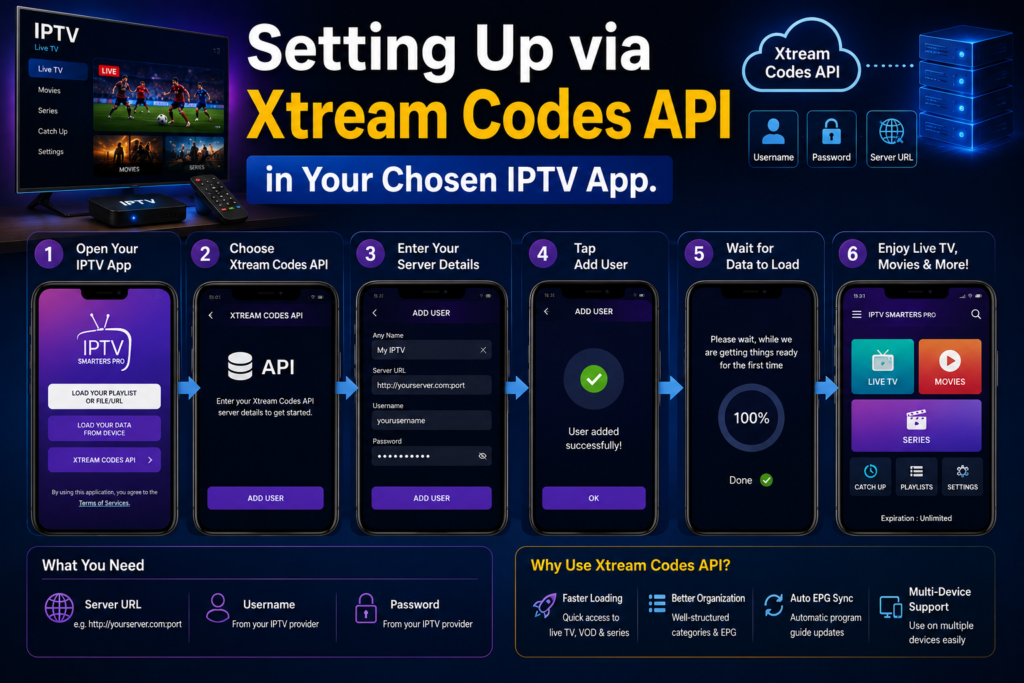
Using Xtream Codes API credentials is the cleanest and fastest way to log in. Follow these steps to ensure your account connects properly without authentication failures:
- Open your media player and select Add Playlist, Add User, or New Connection.
- Select Xtream Codes API from the list of connection types.
- In the Playlist Name field, type any friendly label (e.g., “Living Room TV”).
- Type your Server URL exactly as provided by your media host, including the port number if specified (for example,
[http://myproviderlink.com:8080](http://myproviderlink.com:8080)). Do not add trailing slashes at the end of the URL. - Type your Username and Password carefully. Remember that logins are strictly case-sensitive.
- Click Add User or Include Playlist and wait 30 to 60 seconds while the application fetches your channel index, video-on-demand library, and electronic program guide.
Configuring M3U Playlists and User-Agent Headers
If you are using a raw M3U playlist link instead of API credentials, payload configuration requires a tiny bit more care:
- Select M3U Playlist or URL Link in your player’s setup menu.
- Paste the full M3U Web Link into the URL field. Because typing long web addresses using a TV remote control is tedious, consider using a mobile remote application (like the Amazon Fire TV app) to copy and paste text directly from your phone.
- If your provider requires a specific device identifier, open your player’s advanced network settings and set the custom User-Agent string (for example,
VLC/3.0.18orIPTVSmarters). - Set the Cache Location to “Local Device” so your application doesn’t re-download the entire playlist file every single time you press the back button.
Fine-Tuning Audio and Video Playback Settings
Once your streams are loaded, spending two minutes in your software’s audio and video preferences will instantly improve playback stability:
- Set Video Decoder to Hardware (HW). If you encounter a black screen with audio on certain channels, switch those specific streams to Hardware+ (HW+) or Software (SW).
- Enable Tunneling Playback if you are running an Android TV device connected to an AV Receiver. This reduces audio processing overhead and fixes lip-sync delays.
- Set your Buffer Size or Pre-buffer Length to Medium (2 to 3 seconds). This creates a brief safety window against temporary Wi-Fi packet loss without making channel switches feel overly slow.
- Enable Frame Rate Matching (AFR) if your application and TV support it. This automatically matches your display’s refresh rate (50Hz, 60Hz, or 24Hz) to the stream’s native output, eliminating subtle motion stutter during live sports broadcasts.
Troubleshooting Common Issues in Your IPTV App Setup
Even with a top-rated application and fast internet, technical hiccups happen. Here is how to diagnose and fix the most common streaming issues based on practical troubleshooting experience.
+---------------------------+----------------------------------+------------------------------------+
| Problem                   | Likely Cause                     | Quick Fix Solution                 |
+---------------------------+----------------------------------+------------------------------------+
| Constant Buffering        | Wi-Fi interference / Small Cache | Increase Buffer to 3s / Use 5GHz   |
| Black Screen with Audio   | Incompatible Video Decoder       | Change Decoder from HW to SW       |
| Blank / Missing EPG       | Corrupted Guide Cache            | Clear EPG Data & Force Refresh     |
| Stream Freezes at 10s     | ISP Throttling / Connection Limit| Use Secure DNS / Check Connections |
| Out-of-Sync Audio         | Audio Processing Delay           | Enable Passthrough / AFR Settings  |
+---------------------------+----------------------------------+------------------------------------+
Fixing Constant Buffering and Stream Freezes
Buffering is the ultimate mood killer, but it is rarely caused by a single issue. Before blaming your application, run through this isolation checklist:
First, check your local wireless signal. Living room media centers are notoriously prone to Wi-Fi interference from soundbars, game consoles, and thick walls. Switch your device from a crowded 2.4 GHz network band over to a cleaner 5 GHz Wi-Fi channel, or plug in a cheap USB Ethernet adapter for a direct wired link.
Second, check your player’s internal memory. Low-cost streaming sticks often run out of RAM when processing large high-definition video buffers. Open your device settings, navigate to applications, select your player, and click Clear Cache. Never click Clear Data unless you want to re-enter your account credentials from scratch.
Third, test stream response times by increasing your buffer cache within the application settings from “None” or “Small” up to “Large” (3 to 5 seconds).
Resolving Audio-Video Desync and Black Screens
If you tune to a live broadcast and hear commentator voices but see nothing but a blank black display, your hardware processor is struggling to render that specific video codec format.
To solve this immediately without restarting your device:
- Bring up your player’s quick playback control bar.
- Select Track Options or Decoder Settings.
- Toggle the video decoder mode for that specific channel from Hardware (HW) over to Software (SW) or Native Player.
If the audio commentary lags behind the action, open your player’s audio menu and adjust the Audio Delay slider in 100ms increments until lips and sound align perfectly. Enabling Audio Passthrough in application settings also sends raw digital audio straight to your soundbar, eliminating internal decoding delays.
Fixing Missing EPG Channel Data
A program guide that displays “No Information Available” across all channels usually points to a broken XMLTV update link or a clogged internal guide database.
Fix it by applying these three quick maintenance steps:
- Open your player’s EPG Settings menu.
- Click Clear EPG Cache or Delete Guide Database.
- Re-enter your EPG Source URL or select Update EPG Data Now.
+-------------------------------------------------------------------+
| CLEAR EPG CACHE  -->  FORCE REFRESH EPG  -->  VERIFY TIME SHIFT    |
+-------------------------------------------------------------------+
If program start times are listed two hours off from your local schedule, navigate to your player’s EPG settings and set the Time Shift or UTC Offset slider to match your timezone (e.g., +1 hour or -5 hours).
Dealing with Account Limits and Connection Timeouts
If your stream cuts off exactly after 10 to 15 seconds every single time you launch a channel, your account is likely exceeding its maximum allowed simultaneous connections.
Many subscriptions allow only one or two active streams at a time. If someone else in your household starts watching a show on a tablet in the bedroom while your living room application is open, the server will terminate the primary connection automatically.
Always press the Back or Home button in your application to stop active playback before turning off your television set or switching devices.
Optimizing Network Performance for Smooth Live Streaming
Live video delivery differs fundamentally from on-demand video streaming on platforms like Netflix or YouTube. On-demand platforms pre-render video segments and store huge chunks in advance on local server caches. Live streams deliver content in real time as it happens, leaving zero room for packet drops or connection latency.
+-------------------------------------------------------------------+
| OPTIMAL NETWORK CONFIGURATION FOR LIVE STREAMING                  |
+-------------------------------------------------------------------+
|                                                                   |
|  [ROUTER]                                                         |
|     |                                                             |
|     +---> Ethernet Cable (Best) -----------------> [STREAMING BOX]|
|     |                                                             |
|     +---> 5 GHz Wi-Fi (Good, Low Latency) -------> [FIRE STICK]   |
|     |                                                             |
|     +--X  2.4 GHz Wi-Fi (Avoid: High Lag & Slow Speeds)           |
|                                                                   |
|  DNS SETTINGS: Cloudflare (1.1.1.1) or Google (8.8.8.8)           |
+-------------------------------------------------------------------+
Wired Ethernet vs. 5 GHz Wireless Wi-Fi
Whenever possible, connect your living room streaming box directly to your internet router using an Ethernet cable. A wired link delivers consistent throughput without signal drops caused by physical walls or household radio interference.
If running an Ethernet cable isn’t practical, ensure your streaming device connects exclusively to a 5 GHz Wi-Fi band. While 2.4 GHz Wi-Fi travels further through concrete walls, it suffers from severe signal congestion from neighboring routers, Bluetooth devices, and microwave ovens—leading to stream jitter.
Customizing DNS Server Settings on Your Streaming Device
Your Internet Service Provider (ISP) automatically assigns you a default Domain Name System (DNS) server. These default ISP servers are frequently overloaded during peak evening hours, causing lookup delays when your media player tries to fetch new stream segments.
Changing your streaming device’s network settings to use fast, secure public DNS servers reduces domain lookup times, speeds up channel switching, and bypasses local network routing bottlenecks.
Here are the top public DNS choices to enter into your network settings:
- Cloudflare DNS: Primary
1.1.1.1| Secondary1.0.0.1 - Google Public DNS: Primary
8.8.8.8| Secondary8.8.4.4 - Quad9 Security DNS: Primary
9.9.9.9| Secondary149.112.112.112
Router Quality of Service (QoS) and Local Bandwidth Prioritization
If someone else in your home downloads large files, plays online video games, or streams heavy 4K movies on another device, your live TV stream may start buffering due to bandwidth starvation.
Log into your home router’s admin panel (usually accessible via 192.168.1.1 or 192.168.0.1 in a web browser) and enable Quality of Service (QoS) settings. Assign high priority to your streaming device’s IP address or MAC address. This tells your router to process live video data packets ahead of background file downloads, keeping your TV feed smooth even when your home network is busy.
Frequently Asked Questions About Using an IPTV App
Is using an IPTV app legal on Firestick, Apple TV, or Smart TVs?
Yes, installing and using a standalone iptv app on your device is entirely legal. These applications are simply software tools designed to play media streams and parse public electronic program guide formats. They are safe software players, just like VLC Media Player or Windows Media Player.
Legality depends entirely on the content streams and playlist links you load into the application. Always ensure you are streaming content from authorized legal distributors or your own home media servers.
Why does my EPG guide show blank or incorrect program information?
A blank program guide occurs when the electronic program guide (EPG) source URL is misconfigured, temporarily down, or blocked by local network settings. Clear your player’s internal EPG cache, verify the guide source link, and force a manual guide update in application settings.
If program titles appear correct but are shifted by a few hours, adjust the UTC/GMT time shift offset inside your player’s EPG settings.
What is the difference between an M3U link and Xtream Codes API?
An M3U link is a web address pointing to a plain text playlist file that contains a complete list of stream links and channels. The application must download and process the entire file at once, which can slow down low-spec streaming devices.
Xtream Codes API uses a database lookup system with a Host URL, Username, and Password. The application fetches data dynamically on demand, resulting in significantly faster login times, cleaner channel categories, and automated guide updates.
Can I use my player setup across multiple devices simultaneously?
Your ability to watch streams on multiple devices at the same time depends entirely on the connection limits set by your content host or media server, not on the application itself.
While you can install your preferred application on as many devices as you like, attempting to stream simultaneously on more screens than your account connection limit permits will cause streams to cut off, buffer endlessly, or return authorization errors.
Why does a live stream play perfectly on my smartphone but buffer on my TV?
Smartphones feature significantly faster processors, more RAM, and better Wi-Fi antennas than compact streaming sticks plugged into the back of a television set. Furthermore, televisions are often placed near heavy physical obstacles, soundbars, and wall mounts that degrade Wi-Fi signal strength.
To fix TV buffering, switch your TV device to a 5 GHz Wi-Fi connection, clear the application cache, or use a short HDMI extension cable to position your streaming stick further away from the back panel of your TV screen.
Should I use external video players like VLC or MX Player?
Most modern media applications come with built-in internal playback engines (like ExoPlayer or IJKPlayer) that handle almost all video and audio formats natively.
However, if you run into a stream with unusual audio encoding or unreadable subtitles, selecting Use External Player in your app settings and routing the feed through VLC or MX Player Pro can solve black screens and codec compatibility issues instantly.
Final Thoughts on Picking the Right IPTV App for Your Living Room
Upgrading your home streaming setup doesn’t require buying expensive new hardware or settling for laggy, broken channel menus. The secret to a smooth, enjoyable viewing experience comes down to picking the right software player for your specific streaming box and taking ten minutes to configure it properly.
If you are using an Amazon Firestick or Android TV box, TiviMate remains the premier choice for a polished, cable-like living room experience. For multi-device compatibility across Apple and mobile platforms, IPTV Smarters Pro delivers outstanding simplicity, while OTT Navigator offers the deepest customization tools for power users.
Take the time to set up Xtream Codes API logins, adjust your buffer memory settings, switch to a 5 GHz Wi-Fi or Ethernet connection, and organize your favorite channel groups. Once your iptv app is fine-tuned to your preferences, you can sit back, grab the remote, and enjoy effortless, buffer-free streaming every single time you turn on your TV.


One Response
[…] smart TVs running Tizen OS previously hosted the app directly in the Samsung Smart Hub. However, depending on […]